When our company switched to Microsoft Teams, I’ll admit—I was skeptical.
I had spent years bouncing between Slack, Zoom, Google Meet, and email threads that felt like never-ending group projects. The idea of putting everything in one place sounded convenient… but also a little corporate and clunky.
Fast forward six months later, and here’s what I’ve found: Teams isn’t perfect—but it’s surprisingly powerful once you commit to it.
In this post, I’ll share what it’s really like using Microsoft Teams daily—from chats and meetings to file sharing, integrations, and my favorite (and least favorite) features. Whether you’re considering Teams or just wondering if you’re using it to its full potential, here’s a firsthand look.
First Impressions: Familiar, But Dense
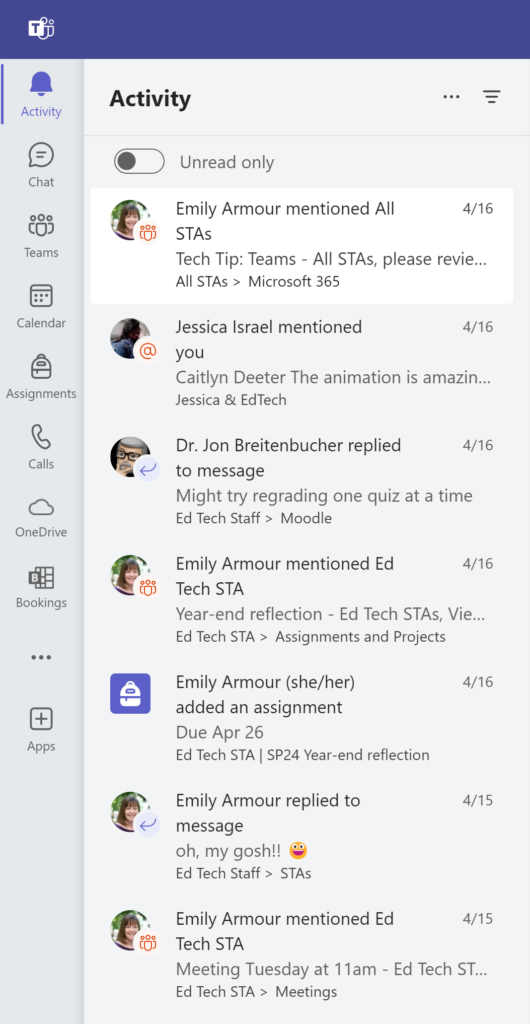
When I first opened Teams, it felt like a blend of Outlook, Zoom, and Slack. You get tabs for Chat, Teams (channels), Calendar, Calls, and Files—all in one sidebar. If you already live in the Microsoft 365 ecosystem, it feels instantly familiar. If you’re not… it’s a bit of a learning curve.
That said, once I figured out the flow, I could see the appeal: one app to message, call, meet, and collaborate—without juggling five others.
What I Use Teams For Every Day
1. Chatting with My Team
Like Slack, you can send direct messages (DMs) or start threads in channels. The threaded conversations take a little getting used to—they’re deeper than Slack threads—but they do keep things organized.
I use Teams chat for:
- Quick check-ins
- Sharing docs
- Tagging someone in for input
- Posting lighthearted GIFs (yes, Teams has those too!)
One thing I appreciate: You can pop out chats into separate windows. Super helpful when you’re multitasking.
2. Daily Meetings (With Surprisingly Good Video Quality)
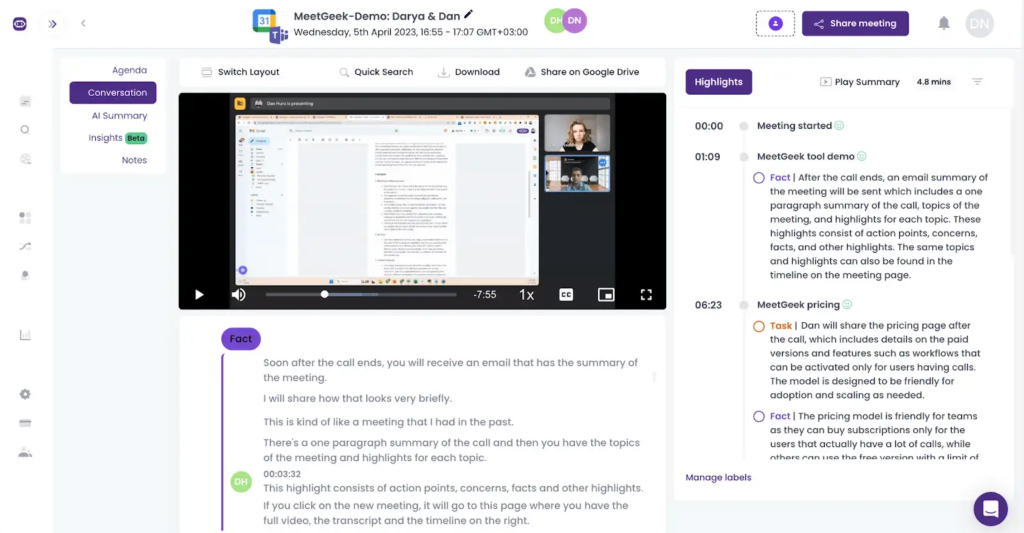
Video calls in Teams are… honestly, smoother than I expected. Screen sharing is crisp. Background blur works well. You can record calls natively. And the transcription feature (available in most paid plans) is a hidden gem.
Meetings also sync perfectly with Outlook—so there’s no “Where’s the Zoom link?” scramble.
3. Collaborating on Docs (Right Inside Teams)
This is where Teams really starts to shine: You can co-edit Word, Excel, and PowerPoint files directly in the app. No downloads. No attachments. Just click and start working together.
It’s especially useful when:
- You’re iterating on a proposal
- Reviewing reports with live comments
- Presenting slides during a call while others edit in the background
What I Like Most About Teams
After using it daily, these are the things I’ve grown to genuinely enjoy:
✅ Centralized Everything
Messages, meetings, files, notes—they’re all tied to the same workspace. No digging through your inbox or toggling between tabs.
✅ Deep Integration with Microsoft 365
If your team is already using Word, Excel, Outlook, and SharePoint, this is seamless. Everything connects.
✅ Channel Organization That Scales
You can create Teams for departments, projects, or committees. Within each Team, you can create tabs for Planner, Files, Notes, and more. It’s like Slack meets Notion meets Zoom.
✅ Built-in Meeting Tools
Polls, hand raises, breakout rooms, shared whiteboards—it’s all there. And surprisingly polished.
What Still Frustrates Me Sometimes
Of course, no tool is perfect. A few areas where I still wish Teams were more intuitive:
⚠️ Slightly Steep Learning Curve
There are a lot of clicks to get where you want. And not all features are where you’d expect. It’s not as “friendly” as Slack out of the box.
⚠️ Notifications Can Be… Excessive
If you’re not careful, Teams will ping you for every mention, comment, or update across all channels. I had to spend time tweaking my settings to avoid alert fatigue.
⚠️ File Navigation Can Feel Clunky
Even though it’s nice to access files in Teams, finding an older document isn’t always quick. The SharePoint backend works, but feels a little… corporate.
How My Team Uses Teams Differently Now
When we first switched to Teams, we used it mostly for meetings. But over time, it’s become a hub for cross-functional work. Here’s how we’ve adapted:
- Weekly check-ins happen in a standing call via Teams Calendar
- Project plans live in a shared Planner tab inside the channel
- Team documents are stored in Files with version tracking
- One-pagers and SOPs are posted as Wiki tabs or shared in real-time during calls
- Casual channels like
#randomand#shoutoutskeep morale up
It’s not just a chat app. It’s our shared operating system.
Microsoft Teams vs. Slack: A Quick Comparison
| Feature | Microsoft Teams | Slack |
|---|---|---|
| Built-in Video Calls | ✅ Native + robust | ❌ Limited, needs Zoom/Meet |
| Microsoft 365 Integration | ✅ Seamless | ❌ Requires third-party apps |
| Channel Customization | ✅ Tabs, Planner, Files | ✅ Simpler, more open-ended |
| Ease of Use | ❌ Slight learning curve | ✅ Easy to pick up |
| Search & Files | ✅ Deep, but SharePoint-heavy | ✅ Lighter and more intuitive |
If your team lives in Google Workspace or prefers simplicity, Slack might be the better fit. But if you already use Microsoft tools—and want one centralized platform—Teams is hard to beat.
Final Thoughts: Would I Recommend Microsoft Teams?
Yes—with a few caveats.
If your organization is already on Microsoft 365, it makes total sense to use Teams. It integrates beautifully, saves time, and reduces tool-switching.
But be prepared to invest a little time upfront. Train your team. Clean up channel sprawl. Customize notifications. Once you find your rhythm, Teams really delivers.
What surprised me most is how much I now rely on it—not just for messaging, but for collaboration. It’s not the flashiest tool, but it’s solid, reliable, and built for real work.
TL;DR – My Microsoft Teams Takeaway
- 📍 Strongest for Microsoft 365 users
- 📞 Excellent for meetings, especially internal
- 📁 Great for document co-editing
- 🔔 Needs notification tuning
- 💪 Becomes more powerful the more you use it