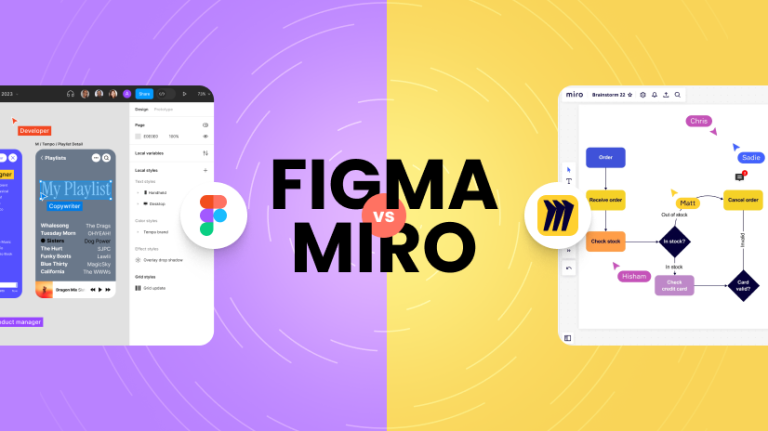
Which platform deserves a place in your design toolkit? We tested both extensively to help you decide.
At a Glance: Figma excels at interface design and prototyping, while Miro dominates collaborative brainstorming and visual thinking. Both are browser-based collaboration platforms, but they serve fundamentally different purposes in the design process.
Quick Comparison Overview
| Feature | Figma | Miro |
|---|---|---|
| Primary Purpose | UI/UX Design & Prototyping | Visual Collaboration & Brainstorming |
| Best For | Product teams, designers, developers | Workshops, ideation, strategic planning |
| Starting Price | Free (3 files) | Free (3 boards) |
| Learning Curve | Moderate | Easy |
| Collaboration Strength | Design feedback & handoff | Brainstorming & facilitation |
| Template Library | 100+ design templates | 300+ workshop templates |
| Mobile Experience | Limited mobile editing | Full mobile collaboration |
| Offline Access | Desktop app available | Browser-dependent |
What Are These Tools Actually For?
Figma: The Interface Design Powerhouse
Figma is a comprehensive interface design tool built for creating websites, mobile apps, and digital products. Think of it as the modern replacement for Adobe XD or Sketch, but with powerful real-time collaboration features baked in.
Core Strengths:
- Professional UI/UX design capabilities
- Advanced prototyping with micro-interactions
- Design system management at scale
- Developer handoff with code generation
- Vector editing and illustration tools
Miro: The Visual Thinking Canvas
Miro is an infinite collaborative whiteboard designed for visual thinking, brainstorming, and workshop facilitation. It’s like having a digital conference room where teams can think visually together.
Core Strengths:
- Unlimited canvas for big-picture thinking
- Extensive template library for workshops
- Real-time brainstorming and ideation
- Strategic planning and process mapping
- Cross-functional team collaboration
Feature-by-Feature Breakdown
🎨 Design Capabilities
Figma Design Features:
✅ Professional vector tools with advanced path editing
✅ Component systems with variants and properties
✅ Auto Layout for responsive design behavior
✅ Advanced typography with OpenType features
✅ Boolean operations for complex shape creation
✅ Constraints and responsive resizing
✅ Gradient and effect controls
Miro Design Features:
✅ Basic shapes and drawing tools
✅ Sticky notes and text elements
✅ Simple diagramming capabilities
✅ Image uploads and media embedding
✅ Basic color and styling options
❌ Limited vector editing capabilities
❌ No advanced typography controls
Winner: Figma – Not even close. Figma is built for professional design work, while Miro focuses on simple visual communication.
🔄 Prototyping & Interactions
Figma Prototyping:
✅ Advanced interaction triggers (click, hover, drag, etc.)
✅ Smart Animate for seamless transitions
✅ Overlay and navigation options
✅ Component state management
✅ Mobile app preview capabilities
✅ Presentation mode for stakeholder demos
Miro Prototyping:
✅ Basic hotspot linking between frames
✅ Simple navigation flows
❌ No advanced animations or transitions
❌ Limited interaction types
❌ No component state management
Winner: Figma – Figma’s prototyping rivals dedicated tools like Principle or Framer, while Miro offers only basic linking.
👥 Collaboration Features
Figma Collaboration:
✅ Real-time cursors and editing
✅ Contextual comments on design elements
✅ Version history and branching
✅ Team libraries for shared components
✅ Developer handoff with inspect mode
✅ Stakeholder review and approval workflows
Miro Collaboration:
✅ Real-time multiplayer editing
✅ Video chat integration
✅ Voting and polling features
✅ Timer for facilitated sessions
✅ Presentation mode for workshops
✅ Anonymous brainstorming options
✅ Screen sharing integration
Winner: Miro – While both excel at collaboration, Miro’s facilitation tools and workshop features give it the edge for team thinking sessions.
📚 Templates & Getting Started
Figma Templates:
- UI Kits for common design patterns
- Wireframe libraries for rapid prototyping
- Design system starters for component libraries
- Platform-specific templates (iOS, Android, Web)
- Industry-specific designs (SaaS, e-commerce, etc.)
Miro Templates:
- Brainstorming frameworks (mind maps, affinity diagrams)
- Agile methodologies (retrospectives, sprint planning)
- Strategy frameworks (SWOT, business model canvas)
- User research tools (journey maps, personas)
- Process mapping (flowcharts, service blueprints)
Winner: Tie – Both offer excellent templates, but for completely different purposes. Figma’s templates help you design faster; Miro’s help you think better.
Pricing Comparison
Figma Pricing Structure
| Plan | Price | Features | Best For |
|---|---|---|---|
| Starter | Free | 3 Figma files, unlimited viewers | Personal projects, learning |
| Professional | $12/editor/month | Unlimited files, version history, team libraries | Small design teams |
| Organization | $45/editor/month | Advanced permissions, analytics, plugins | Large organizations |
Miro Pricing Structure
| Plan | Price | Features | Best For |
|---|---|---|---|
| Free | Free | 3 boards, unlimited team members | Small team brainstorming |
| Starter | $8/user/month | Unlimited boards, integrations, templates | Growing teams |
| Business | $16/user/month | Advanced security, admin features | Professional facilitation |
| Enterprise | Custom | SSO, advanced compliance, dedicated support | Large organizations |
Value Analysis:
- Figma costs more but includes professional design capabilities
- Miro offers better value for pure collaboration needs
- Both provide generous free tiers for getting started
Use Case Scenarios: When to Choose Which
Choose Figma When:
🎯 UI/UX Design Projects
You’re designing websites, mobile apps, or digital interfaces that need pixel-perfect precision and professional design capabilities.
Example: Creating a mobile banking app with complex user flows, micro-interactions, and a comprehensive design system.
🔧 Product Development Teams
Your team includes developers who need detailed specifications, code snippets, and design system documentation.
Example: A SaaS company building a dashboard where designers need to hand off exact specifications to front-end developers.
📱 High-Fidelity Prototyping
You need to create realistic prototypes that demonstrate complex interactions and user experiences for user testing or stakeholder buy-in.
Example: Prototyping an e-commerce checkout flow with animations, form validation, and responsive behavior.
🏢 Design System Management
You’re building and maintaining component libraries that need to scale across multiple products and teams.
Example: A large enterprise creating a unified design system used across 20+ different applications.
Choose Miro When:
🧠 Brainstorming & Ideation
Your team needs to generate ideas, organize thoughts visually, and collaborate on creative problem-solving.
Example: A marketing team brainstorming campaign concepts for a product launch using mind maps and affinity diagrams.
📊 Workshop Facilitation
You’re running structured workshops, retrospectives, or strategic planning sessions that require facilitation tools and templates.
Example: Facilitating a design thinking workshop with stakeholders from multiple departments to identify user pain points.
🗺️ Process Mapping & Strategy
You need to visualize complex processes, customer journeys, or organizational strategies on an infinite canvas.
Example: Mapping the entire customer onboarding journey across multiple touchpoints and departments.
🔄 Cross-Functional Collaboration
Your team includes non-designers who need to participate in visual thinking without learning complex design tools.
Example: A product team including engineers, marketers, and executives collaborating on quarterly planning.
Integration Ecosystems
Figma Integrations
Design & Development:
- Zeplin – Enhanced developer handoff
- GitHub – Version control for design files
- Maze – User testing on prototypes
- Abstract – Advanced version control
Productivity:
- Slack – Design notifications and sharing
- Notion – Embed designs in documentation
- Asana/Jira – Link designs to project tasks
Miro Integrations
Video Conferencing:
- Zoom – Native board sharing in meetings
- Microsoft Teams – Embedded boards in channels
- Google Meet – Screen sharing integration
Project Management:
- Jira – Convert sticky notes to tickets
- Trello – Export boards to project cards
- Monday.com – Sync workshop outcomes
Productivity:
- Slack – Board notifications and sharing
- Google Workspace – Import/export capabilities
- Microsoft Office – Document integration
Performance & Technical Considerations
Browser Performance
- Figma: Handles large design files well, but complex prototypes can slow down in browser
- Miro: Excellent performance even with hundreds of objects on infinite canvas
Offline Capabilities
- Figma: Desktop app available with offline editing capabilities
- Miro: Limited offline functionality, primarily browser-dependent
Mobile Experience
- Figma: Mobile apps for viewing and basic commenting, limited editing
- Miro: Full mobile collaboration with touch-optimized interface
File Management
- Figma: Project-based organization with team libraries
- Miro: Board-based organization with team folders
Learning Curve & Adoption
Figma Learning Path
Beginner (1-2 weeks): Basic shapes, text, and layout tools
Intermediate (1-2 months): Components, Auto Layout, and prototyping
Advanced (3-6 months): Design systems, advanced interactions, plugins
Training Resources:
- Figma Academy with structured courses
- YouTube tutorials from design community
- Template exploration and reverse-engineering
Miro Learning Path
Beginner (1-3 days): Sticky notes, basic shapes, and templates
Intermediate (1-2 weeks): Facilitation techniques and advanced templates
Advanced (1 month): Custom frameworks and integration workflows
Training Resources:
- Miro Academy certification programs
- Template library with built-in instructions
- Community-driven facilitation guides
Winner: Miro – Much gentler learning curve and faster time to productivity
Security & Enterprise Features
Figma Enterprise Security
✅ SOC 2 Type II compliance
✅ SAML SSO integration
✅ Advanced permissions and admin controls
✅ Audit logs and analytics
✅ Private plugins and custom integrations
Miro Enterprise Security
✅ SOC 2 Type II compliance
✅ SAML SSO integration
✅ Advanced admin controls
✅ Data residency options
✅ Enterprise-grade encryption
Winner: Tie – Both offer enterprise-grade security features
The Verdict: It’s Not Really a Competition
Here’s the truth: Figma and Miro aren’t really competitors—they solve different problems in the design and collaboration workflow.
The Ideal Scenario: Use Both
Most successful design teams actually use both tools:
- Miro for Discovery & Strategy
- User research synthesis
- Brainstorming and ideation
- Journey mapping and service design
- Strategic planning and roadmapping
- Figma for Design & Development
- Interface design and prototyping
- Design system creation and management
- Developer handoff and specifications
- High-fidelity user testing
If You Can Only Choose One:
Choose Figma if:
- You’re primarily doing UI/UX design work
- You need professional design capabilities
- Developer handoff is crucial to your workflow
- You’re building digital products or applications
Choose Miro if:
- You’re focused on facilitation and workshops
- Your team needs better brainstorming tools
- You’re doing more strategic/planning work than detailed design
- You need to include non-designers in creative processes
Final Recommendations
For Design Teams: Figma + Miro Combo
Start with Figma for core design work, add Miro for ideation and strategy sessions.
For Product Teams: Figma Priority
Figma’s design-to-development workflow makes it essential; add Miro if workshop facilitation is important.
For Marketing/Strategy Teams: Miro Priority
Miro’s collaboration and facilitation tools align better with marketing and strategy workflows.
For Consultants/Facilitators: Miro Priority
The template library and facilitation features make Miro indispensable for workshop leaders.
For Startups (Budget-Conscious): Start with Free Tiers
Both offer generous free plans—test extensively before committing to paid features.
Bottom Line Ratings
Figma
★★★★★ Design Capabilities – Industry-leading interface design tools
★★★★☆ Collaboration – Excellent for design feedback, good for general collaboration
★★★☆☆ Learning Curve – Moderate complexity, designer-focused
★★★★☆ Value – Higher cost but professional capabilities justify price
Overall: 4.3/5 stars
Miro
★★★☆☆ Design Capabilities – Basic visual tools, not for professional design
★★★★★ Collaboration – Best-in-class facilitation and brainstorming features
★★★★★ Learning Curve – Extremely accessible for all skill levels
★★★★☆ Value – Good pricing for collaboration features
Overall: 4.1/5 stars
The Real Winner: Your workflow efficiency when you use the right tool for the right job. Don’t try to force one tool to do everything—embrace the strengths of each platform and watch your team’s productivity soar.