Hey there! 👋
If you’re like me, Microsoft Teams probably wasn’t love at first click. Maybe you got tossed into it because your company made the switch, or you’re juggling meetings, files, and way too many pings.
But once you get past the clutter? Teams is actually a solid productivity hub—if you know how to work it.
Here are 9 practical Teams tips and tutorials I wish someone had told me earlier. Whether you’re totally new or just trying to get more out of it, you’ll find something useful below.
1. 🧹 Clean Up Your Left Sidebar with Pinned Chats & Channels
Tired of hunting down that one chat you use every day?
You can pin important chats and channels so they always stay at the top. Just right-click on a chat or channel and hit “Pin”. Done. No more digging.
🔧 Tip: Keep your sidebar to 5–7 pins max so it stays clean and focused.
2. 🧭 Use the Search Bar Like a Pro
The search bar at the top of Teams isn’t just for names—it’s crazy powerful.
Try this:
from:Jessicato see all messages from Jessicahas:attachmentto filter by filesmeeting notesto pull up any related docs
Just hit Ctrl + F (or ⌘ + F on Mac) while in a channel to search only within that space. 🔍
3. 🗓️ Schedule Meetings Right from a Chat
Did you know you can book a meeting right inside a chat window?
Just click the small calendar icon 📅 at the bottom of your chat and set the time. This is perfect for when you’re planning a quick sync and don’t want to bounce over to Outlook.

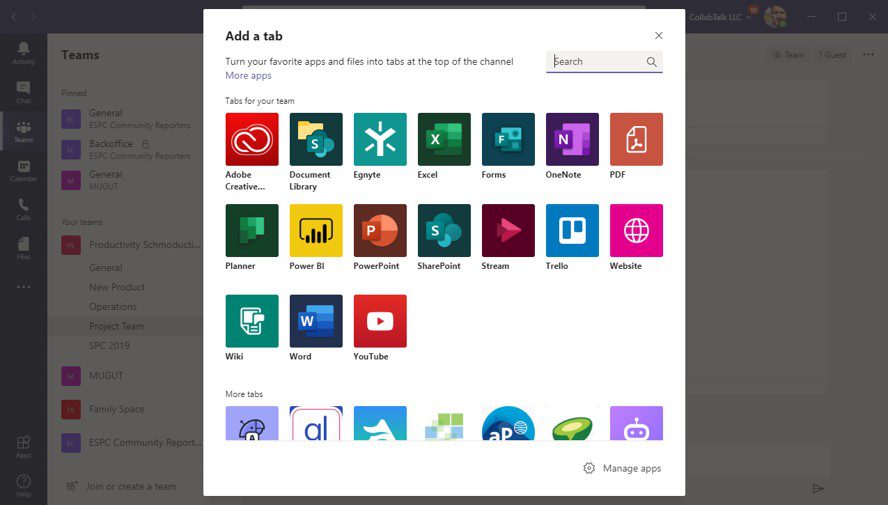
4. 🖇️ Add Tabs to Your Channels (Like Notion, Planner, or Excel)
Here’s a game-changer: in any Team channel, you can add tabs at the top for:
- A live Excel file
- A shared whiteboard
- Your team’s Notion workspace
- A Planner board for tasks
Just click the ➕ icon at the top of your channel and pick an app. This turns Teams into more than just a chat—it becomes your command center.
5. ✋ Use “Raise Hand” and “Reactions” in Meetings
This one’s simple but makes a big difference. During calls:
- Click ✋ to raise your hand without interrupting
- Use emojis 👍 ❤️ 😂 to react in real-time
Keeps things lively and respectful, especially with bigger teams.
💡 Tip: Teams will now show who raised their hand first—no more guessing who’s next!
6. 🎥 Record and Transcribe Meetings Automatically
Busy day? Record the meeting (with permission, of course!) and get a full transcript.
Just hit “Record” during the call, and Teams will save both the video and transcript to your OneDrive or SharePoint, depending on the type of meeting.
Perfect for:
- Team updates
- Interviews
- Anything you’ll want to review later
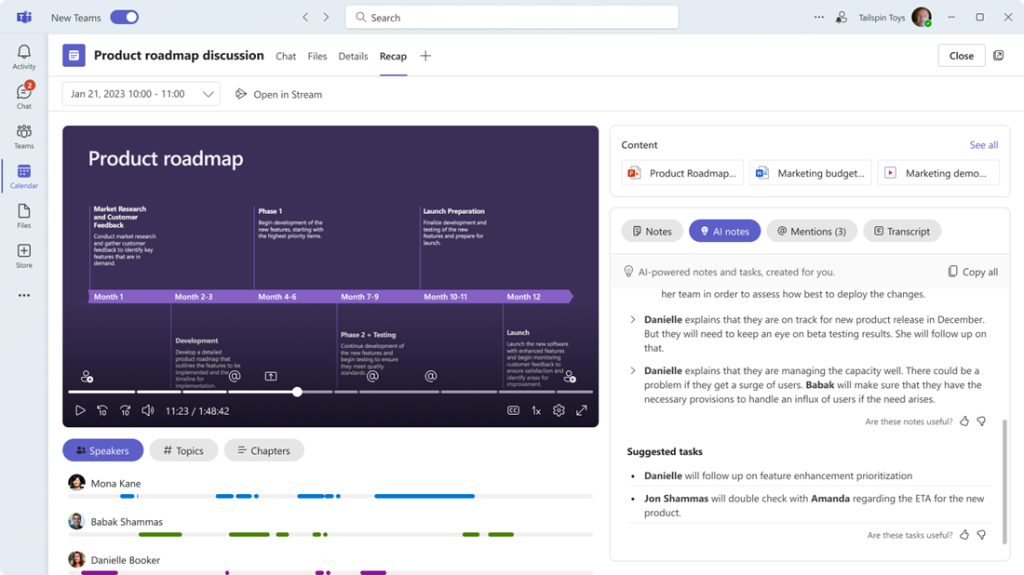
7. 🧠 Use the New AI Recap Feature (If You Have It)
If you’re on a premium plan, check if you have AI Recap turned on.
After a meeting, Teams will:
- Summarize the key discussion points
- Highlight decisions and action items
- Share a quick-read version with attendees
Honestly? It’s a time-saver if you’re in back-to-back meetings all day.
8. 📁 Share Files Without Spamming Everyone
When you drop a file into a chat or channel, Teams automatically saves it to SharePoint or OneDrive.
Here’s what I do:
- Drop the file in the Files tab of a channel
- Then post a short message like, “Hey team, FYI, Q3 budget uploaded.”
Keeps things neat and prevents endless re-uploads of the same doc.
9. 🔕 Customize Notifications So Teams Doesn’t Drive You Crazy
Go to Settings > Notifications and tailor what you actually want to hear about:
- Mute channels you don’t need updates from
- Set “Quiet hours” so you’re not getting pings at 10PM
- Turn off reaction notifications (because… who needs a ping for a heart emoji?)
Final Thoughts: Teams Is What You Make It
Microsoft Teams can definitely feel a little “corporate” at first—but once you lean into the customizations and shortcuts, it becomes a pretty powerful productivity tool.
If you take one thing away from this post, it’s this: Don’t treat Teams like just another chat app. Use tabs, schedule inside chats, tweak your alerts—it’ll change your whole experience.
📌 Want more tutorials like this? I’m always testing out new tools and writing no-BS guides to make remote work suck less. Bookmark the site and check us out regularly!