Whether you’re a Miro newcomer feeling overwhelmed by the infinite canvas or a seasoned user looking to level up your facilitation game, these expert tips will transform how you and your team collaborate visually. From hidden keyboard shortcuts to advanced facilitation techniques, we’re sharing the insider knowledge that separates Miro masters from casual users.
🚀 Level 1: Essential Shortcuts That Save Hours
1. Master the Keyboard Ninja Moves
Stop clicking through menus when these shortcuts can make you lightning-fast:
Essential Shortcuts:
S– Instantly create sticky notesT– Add text anywhere on the boardL– Draw connecting lines and arrowsCtrl/Cmd + D– Duplicate selected objectsSpace + Drag– Pan around the board effortlesslyCtrl/Cmd + A– Select everything on screen/– Quick search for any tool or feature
Pro Tip: Hold Shift while drawing connectors to create perfectly straight lines, or hold Shift while resizing objects to maintain proportions.
2. The Magic of Multi-Select
Click and drag to select multiple objects, then:
- Right-click to access bulk actions
- Change colors of multiple sticky notes instantly
- Align objects perfectly with alignment tools
- Group items together for easy moving
🎯 Level 2: Smart Organization Techniques
3. Color-Code Like a Pro
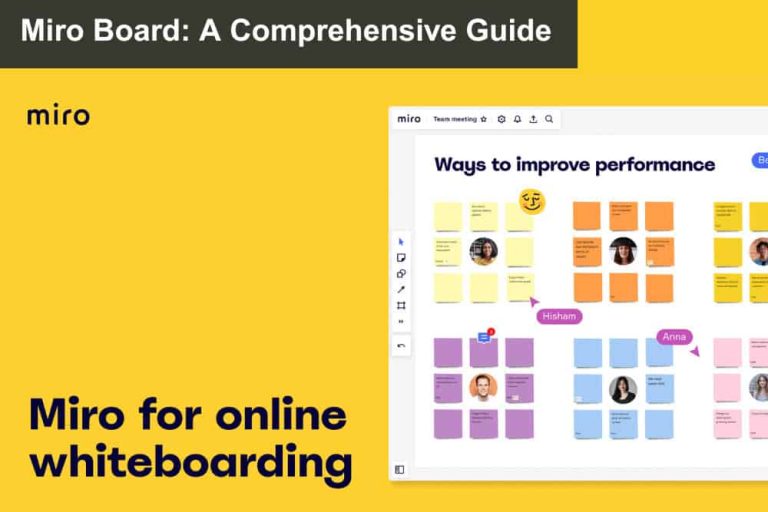
Develop a consistent color system across all your boards:
Recommended Color Schemes:
- 🟡 Yellow – Ideas and brainstorming
- 🟢 Green – Approved/positive feedback
- 🔴 Red – Issues, blockers, or urgent items
- 🔵 Blue – Action items and next steps
- 🟣 Purple – Questions or areas needing clarification
Advanced Tip: Use sticky note text formatting (bold, italic, strikethrough) to add additional meaning without changing colors.
4. Frame Your Way to Clarity
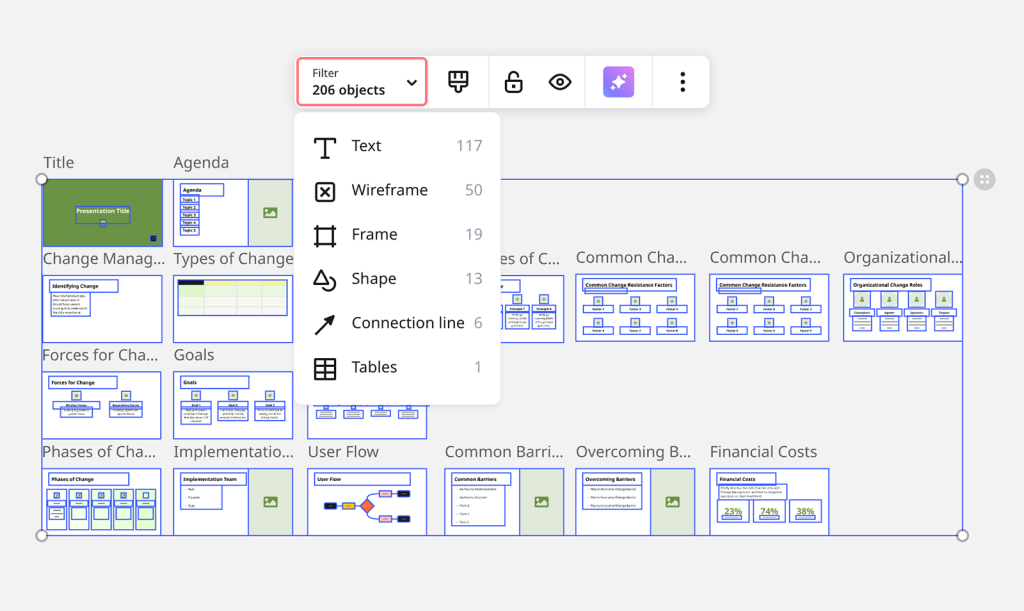
Frames are Miro’s secret weapon for organization:
- Group related content visually
- Create sections for different discussion topics
- Add titles that stay visible when zoomed out
- Navigate large boards using the frames panel
How to Use Frames Effectively:
- Press
Fto create a frame - Draw around content you want to group
- Double-click the frame title to rename it
- Use the frames panel (left sidebar) for quick navigation
5. The Power of Templates Within Templates
Create reusable content blocks for common elements:
- Standard meeting agenda sections
- Decision-making frameworks (pros/cons, RACI charts)
- Feedback collection areas
- Action item tracking zones
Save these as custom templates or copy them between boards using Ctrl/Cmd + C and Ctrl/Cmd + V.
⚡ Level 3: Facilitation Superpowers
6. Timer Magic for Focused Sessions
The built-in timer isn’t just a clock—it’s a facilitation game-changer:
Timer Strategies:
- ⏰ 5 minutes – Silent brainstorming (no talking, just adding ideas)
- ⏰ 3 minutes – Quick feedback rounds
- ⏰ 10 minutes – Focused discussion on specific topics
- ⏰ 1 minute – Lightning decision-making
Pro Facilitation Tip: Always announce what participants should do during the timer period. “For the next 5 minutes, add as many ideas as possible using sticky notes—no discussion, just ideas!”
7. Voting That Actually Works
Make decisions democratically with Miro’s voting features:
Dot Voting Setup:
- Select all sticky notes with ideas
- Right-click → “Add voting”
- Set vote limits (usually 3-5 votes per person)
- Let team members click to vote
- Sort by vote count to see winners
Advanced Voting Techniques:
- Multiple voting rounds – First for feasibility, then for impact
- Weighted voting – Give different people different vote counts
- Anonymous voting – Turn off vote visibility until everyone’s done

8. The Art of Real-Time Clustering
Turn chaotic brainstorming into organized insights:
Live Clustering Process:
- Generate ideas first (5-10 minutes of pure brainstorming)
- Start clustering – drag similar ideas together
- Invite participation – let others help with grouping
- Label clusters with theme names
- Discuss patterns that emerge
Clustering Pro Tips:
- Use different colored sticky notes for different cluster themes
- Create “parking lot” areas for ideas that don’t fit anywhere
- Snap to grid (turn on in view menu) for cleaner organization
🔧 Level 4: Advanced Power Features
9. Smart Drawing Recognition
Miro’s AI can clean up your rough sketches:
- Draw rough shapes and watch them become perfect
- Sketch flowcharts that auto-connect
- Create diagrams that snap to grids automatically
How to Activate:
- Turn on “Smart drawing” in the toolbar
- Draw shapes roughly—Miro will suggest clean versions
- Accept suggestions with spacebar or keep drawing to ignore
10. Connector Intelligence
Make your diagrams professional with smart connectors:
- Auto-routing – Connectors find the best path between objects
- Connection points – Snap to specific spots on shapes
- Curved vs. straight – Choose the right style for your content
- Arrow styles – Different arrow types convey different meanings
Connector Pro Tips:
- Double-click connectors to add text labels
- Right-click connectors to change styles and colors
- Use line thickness to show importance or flow volume
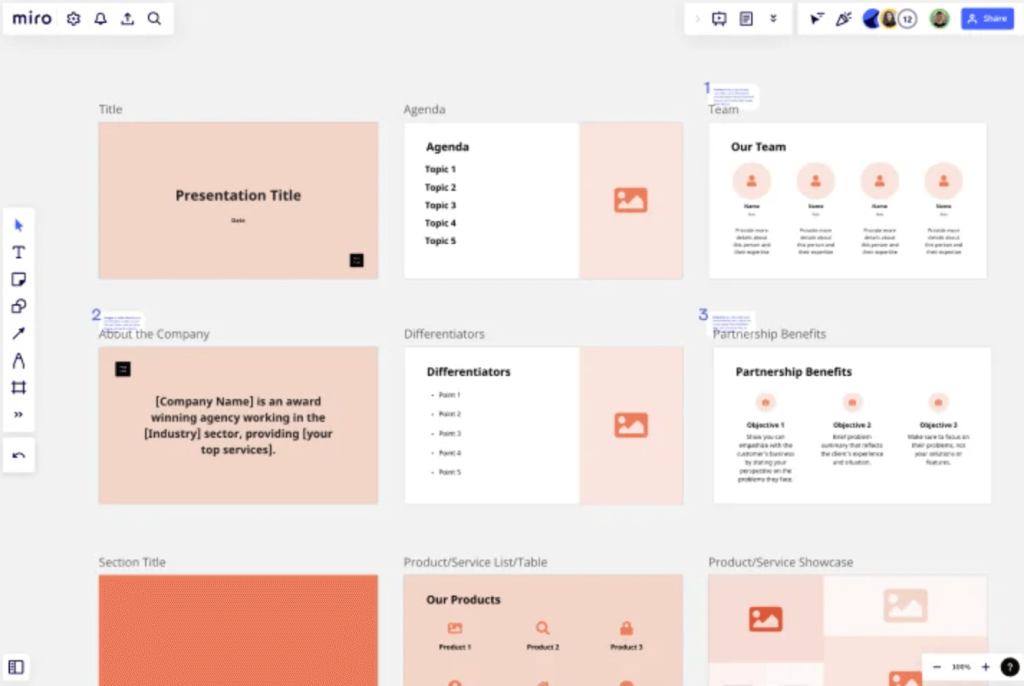
11. Presentation Mode Mastery
Turn any board into a guided presentation:
Setting Up Presentation Flows:
- Add frames around key content areas
- Number frames in logical sequence
- Enter presentation mode (present button in toolbar)
- Use arrow keys to navigate between frames
- Zoom and pan during presentation for emphasis
Advanced Presentation Techniques:
- Hide irrelevant content using frames
- Use spotlight tool to highlight specific areas
- Enable laser pointer for dynamic pointing
- Share presenter view while keeping edit view private
🎨 Level 5: Customization and Efficiency
12. Build Your Personal Miro Toolkit
Create a personal efficiency system:
Custom Workspace Setup:
- Pin frequently used templates to your dashboard
- Create template favorites for quick access
- Set up standard color palettes for consistency
- Save common shapes and icons as reusable elements
Team Standardization:
- Establish team conventions for colors, shapes, and layouts
- Create shared template library for common meeting types
- Document your team’s Miro guidelines on a dedicated board
- Train new team members on your established practices
🎯 Bonus: Troubleshooting Common Issues
Performance Optimization
- Limit board size – Create multiple focused boards instead of one massive board
- Clean up regularly – Archive old content and delete unused elements
- Use frames strategically – Don’t over-frame small content areas
- Optimize images – Compress large images before uploading
Collaboration Fixes
- Internet connectivity – Poor connections cause sync issues
- Browser compatibility – Chrome and Safari work best
- Permissions problems – Check board sharing settings
- Version conflicts – Refresh browser if changes aren’t syncing
🏆 Your Miro Mastery Action Plan
Week 1: Foundation Building
- [ ] Practice essential keyboard shortcuts daily
- [ ] Establish your team’s color-coding system
- [ ] Create 3 custom templates for common meetings
Week 2: Facilitation Skills
- [ ] Run one meeting using timer-based activities
- [ ] Practice voting and clustering techniques
- [ ] Experiment with presentation mode
Week 3: Advanced Features
- [ ] Master smart drawing and connectors
- [ ] Build your custom template library
- [ ] Train team members on new techniques
Week 4: Optimization
- [ ] Document team Miro guidelines
- [ ] Optimize existing boards for performance
- [ ] Gather feedback and refine processes
🎉 Ready to Become a Miro Master?
These techniques represent hundreds of hours of collective Miro experience distilled into actionable insights. The difference between good and great Miro facilitation often comes down to these small details—the right shortcut at the right moment, the perfect color-coding system, or the well-timed use of a timer.
Remember: Mastery comes from practice, not perfection. Start with 2-3 techniques that resonate with your team’s needs, then gradually incorporate others as they become second nature.
Your next breakthrough collaboration session is just one well-facilitated Miro board away. Which technique will you try first?
📚 Keep Learning
- Miro Academy – Free courses and certifications
- Community Templates – Discover what other teams are building
- Feature Updates – Follow Miro’s blog for latest capabilities
- User Forums – Connect with other Miro masters worldwide
Happy collaborating! 🚀